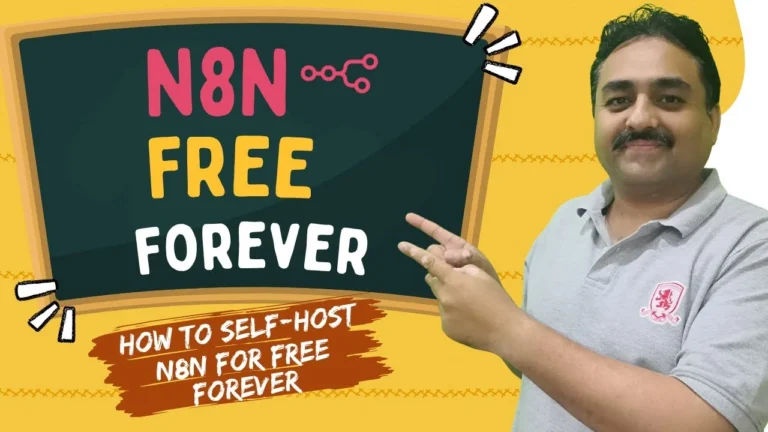
Workflow automation has become the backbone of modern business operations. Whether you are syncing customer leads from web forms to spreadsheets, generating automated invoices, routing AI queries, or sending transactional notifications, connecting disparate applications is no longer optional—it is essential.
However, if you rely on proprietary software-as-a-service (SaaS) automation platforms like Zapier or Make (formerly Integromat), you quickly hit a painful reality: artificial task quotas and aggressive paywalls.
On Zapier, running just 10,000 tasks per month can easily cost upwards of $100 to $150 every single month. If a webhook accidentally triggers an infinite loop or you execute a bulk data cleanup across 50,000 rows, your monthly budget gets wiped out in a matter of hours.
| Feature | Zapier (Starter) | Make (Pro) | Self-Hosted n8n |
|---|---|---|---|
| Monthly Software Fee | $29.99 – $129+/mo | $16 – $59+/mo | $0.00 (Free) |
| Workflow Limit | Strict quotas | Strict operations | UNLIMITED |
| Execution Limits | Pay per task | Pay per operation | UNLIMITED |
| Data Privacy | Third-party cloud | Third-party cloud | 100% On-Premise |
| Webhook Latency | Polling intervals | Tier-dependent | Instant (Realtime) |
| Custom Code Nodes | Restricted Python | Limited JavaScript | Full Node.js / Python |
Enter n8n (nodemation): the world’s premier fair-code workflow automation engine. n8n provides over 400+ pre-built application integrations, native LangChain AI agent nodes, visual branching logic, and custom JavaScript/Python execution.
Best of all, n8n is 100% free forever when you self-host it. By deploying n8n Community Edition on your own server using Docker and Docker Compose, you eliminate task-based licensing fees entirely. You can run 500,000 workflow executions every month, and your software cost remains exactly zero dollars.
System Requirements & Architecture Overview
Before launching into terminal commands, let’s review what you need to run n8n smoothly:
- CPU: 1 vCPU (2 vCPUs recommended for concurrent webhook processing).
- RAM: 1 GB minimum (2 GB+ recommended if building memory-intensive loops or PDF pipelines).
- Disk Space: 10 GB to 20 GB SSD storage.
- Operating System: Ubuntu 22.04 LTS or 24.04 LTS (physical PC, local Hyper-V / VirtualBox VM, or cloud VPS).
Why Docker & Docker Compose?
While n8n can technically be installed via npm directly on Node.js, Docker is the industry standard for self-hosting:
- Dependency Isolation: n8n bundles its exact Node.js runtime and libraries in an isolated container—no host version conflicts.
- Effortless 1-Command Updates: Upgrading n8n takes just
docker-compose pull && docker-compose up -d. - Data Persistence: By mapping a host folder (
./data) to the container’s internal directory (/home/node/.n8n), all workflows, credentials, and execution logs remain permanently safe.
Phase 1: Preparing Your Ubuntu Server & Installing Docker
Log in to your Ubuntu Server terminal via SSH or your hypervisor console.
Step 1: Update and Upgrade System Repositories
sudo apt update
sudo apt upgrade -y
Step 2: Install Docker and Docker Compose
sudo apt install docker.io -y
sudo apt install docker-compose -y
Step 3: Grant Docker Privileges to Your User
By default, Docker commands require root privileges (sudo). Add your user to the docker security group to run commands seamlessly:
sudo usermod -aG docker $USERStep 4: Reboot the Server
sudo rebootReconnect via SSH after 30 to 60 seconds.
Step 5: Verify the Docker Installation
docker run hello-worldIf you see “Hello from Docker! This message shows that your installation appears to be working correctly,” your container runtime is ready.
Phase 2: Project Directories & Crucial Permissions (The UID 1000 Fix)
Create a clean project directory to hold your configuration files and database:
mkdir n8n
cd n8n
mkdir data
CRITICAL LINUX PERMISSION NOTICE:
The official n8n Docker container runs under a non-root user namednode(UID 1000, GID 1000). If thedatafolder is owned by root, n8n will fail withEACCES: permission denied, open /home/node/.n8n/configand continuously restart!
Assign proper ownership and permissions to UID 1000:
sudo chown -R 1000:1000 data
sudo chmod -R 755 data
Phase 3: Crafting Production Configuration Files
Step 1: Create the .env File
sudo nano .envPaste the following production configuration:
# n8n Core Environment Configuration
N8N_BASIC_AUTH_ACTIVE=true
N8N_BASIC_AUTH_USER=admin
N8N_BASIC_AUTH_PASSWORD=YourStrongSecretPassword123!
N8N_HOST=192.168.1.50
N8N_PORT=5678
N8N_PROTOCOL=http
N8N_SECURE_COOKIE=false
NODE_ENV=production
(Set N8N_HOST to your server’s IP address or domain name, and choose a strong password). Save with Ctrl + O, Enter, and exit with Ctrl + X.
Step 2: Create the docker-compose.yml File
sudo nano docker-compose.ymlPaste the following YAML configuration:
services:
  n8n:
    image: n8nio/n8n:latest
    restart: always
    container_name: n8n-server
    ports:
      - "5678:5678"
    env_file:
      - .env
    volumes:
      - ./data:/home/node/.n8n
Save and exit. Then secure the file ownership:
sudo chown -R 1000:1000 docker-compose.yml .env
sudo chmod -R 755 docker-compose.yml .env
Phase 4: Launching & Verifying n8n
Launch your n8n container in detached mode:
docker-compose up -dVerify that the container is actively running:
docker psYou should see n8n-server with status Up and port 5678->5678/tcp.
Phase 5: Accessing the Web Dashboard & Onboarding
- Open your browser and navigate to
http://YOUR_SERVER_IP:5678(e.g.,http://192.168.18.80:5678). - Log in with the credentials defined in your
.envfile. - Complete the initial Owner Account setup with your name and email.
- Make sure to provide your email address to receive the license key for paid features for free (forever). Once you provide your email address you will get the license code on your email.
- Enter your license key that you received on your email and your n8n instance will be fully activated with paid features free forever.
You now have full access to the complete n8n workflow canvas!
Local VM vs. 24/7 Cloud VPS: Which Deployment Is Best?
| Factor | Local Server (Home PC / VM) | Cloud VPS (Hostinger / DigitalOcean) |
|---|---|---|
| Software Cost | $0.00 | ~$4.00 – $6.00 / month |
| Uptime | Only while PC is powered on | 99.9% 24/7 Guaranteed Uptime |
| Public Webhooks | Requires ngrok / port forwarding | Public Static IP Included |
| Best For | Testing, learning, internal scripts | Client leads, Stripe, 24/7 automations |
Recommendation: If you are testing workflows or running scheduled local scripts, a free Ubuntu VM is great. However, if you are capturing business leads, listening for Stripe payments, or triggering automations via webhooks 24/7, deploy your container to an affordable cloud VPS like Hostinger Cloud VPS or DigitalOcean for under $5/month.
Real-World Workflows: Put Your New n8n Server to Work
Now that your n8n instance is live, check out my companion automation tutorials:
- Automate Google Sheets Data Cleaning: Learn how to deduplicate, trim whitespace, and standardize messy spreadsheets in my guide on How to Automate Google Sheets Data Cleaning with n8n.
- Free Online Document Tools: Explore my browser-based suite of free PDF Tools and Image Tools—100% private processing without uploading files to external servers.
Frequently Asked Questions (FAQ)
What should I do if the container keeps crashing on startup?
Check the container error logs with docker logs -f n8n-server. Almost all startup crashes stem from permission issues on the data folder. Re-run sudo chown -R 1000:1000 ~/n8n/data.
How do I update n8n to the newest version?
Run cd ~/n8n && docker-compose pull && docker-compose up -d. Docker downloads the new image and re-attaches your persistent database without losing workflows.
Can I connect local AI models like Ollama or LM Studio?
Yes! In n8n, add the OpenAI Chat Model or Ollama node and point the Base URL to your local AI endpoint. See our walkthrough on Running Hermes AI Agent with LM Studio for full configuration details.
Summary & Next Steps
Self-hosting n8n gives you enterprise-grade automation with zero execution fees and total privacy. Spend 20 minutes setting up Docker today, and you’ll never pay a Zapier invoice again.
- Watch the Complete Video Tutorial: How to Use N8N For Free Forever – Self-Host N8N Free
- Stay Tuned: In my upcoming post, we will build a production workflow connecting web contact forms directly to Google Sheets and Gmail using n8n!

1 thought on “How to Self-Host n8n for Free Forever: Complete Docker & VPS Setup Guide”
Comments are closed.