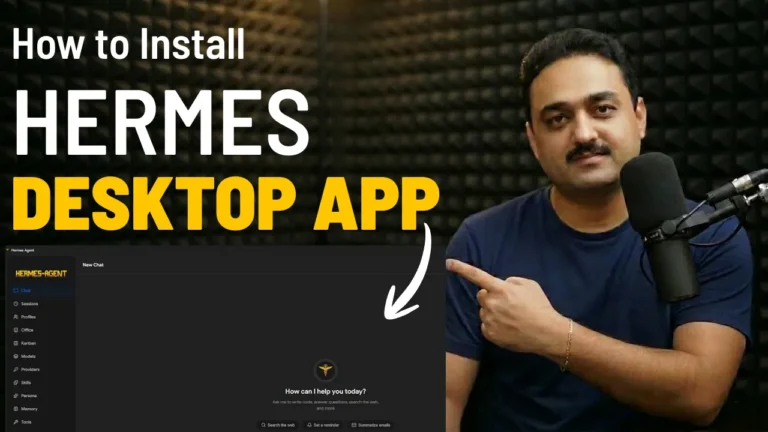
Nous Research’s Hermes Agent has rapidly emerged as one of the most capable open-source autonomous agent architectures in 2026. Equipped with tool-calling precision, deep reasoning loops, web browsing capabilities, and persistent memory, Hermes enables developers to automate complex technical workflows entirely on their own terms.
However, while power users are comfortable launching agent sessions inside Windows PowerShell or WSL, many developers, creators, and professionals prefer a visual graphical user interface (GUI). Managing active agents, switching LLM providers, auditing multi-agent memory, and configuring web tools shouldn’t require memorizing dozen-flag terminal commands.
That is where the Hermes Desktop App comes in. Developed by the open-source community (fathah/hermes-desktop), Hermes Desktop packages the full power of Hermes Agent into an elegant, cross-platform desktop application.
In this guide, you will learn step-by-step how to download the Windows 11 installer, resolve Windows SmartScreen security alerts, connect your AI provider (cloud APIs like OpenRouter/Gemini or 100% offline local LLMs via LM Studio), and test live web-search agents directly inside the visual dashboard.
What is Hermes Desktop? (Key Architecture & Features)
Hermes Desktop bridges the gap between raw CLI scripts and practical everyday agent management:
+-----------------------------------------------------------------+
|                   Hermes Desktop GUI (Windows 11)               |
+--------------------------------+--------------------------------+
|          Visual Chat           |        System Engine Hub       |
|  - Real-Time Tool Execution    |  - Auto-Detects Local Agent    |
|  - Live Web Search & Scraping  |  - 1-Click Upstream Git Update |
|  - Markdown & Code Rendering   |  - OpenAI SDK / Python Bridge  |
+--------------------------------+--------------------------------+
                                 |
           +---------------------v---------------------+
           |            AI Provider Connectors         |
           +---------------------+---------------------+
           |   Cloud Providers   |     Local Models    |
           |  - OpenRouter       |  - LM Studio Server |
           |  - Google AI Studio |  - Ollama Endpoint  |
           |  - Anthropic/OpenAI |  - Qwen 2.5 / 3     |
           +---------------------+---------------------+
Why Use the Desktop App Over the Command Line?
- Interactive Visual Dashboard: View conversation threads, tool execution logs, and live code outputs without terminal clutter.
- Auto-Detects Existing Hermes Installations: If you already installed Hermes Agent via my Windows 11 No-WSL Guide, Hermes Desktop automatically links to your existing configuration directory, environment variables, and memory files.
- 1-Click Engine Updates: View how many commits your agent is behind upstream GitHub releases and upgrade the core engine with a single button click.
- Flexible Provider Architecture: Switch between cloud providers (Google Gemini Flash, OpenRouter, Groq) and fully offline local servers (LM Studio & Qwen) in seconds.
System Requirements & Prerequisites
- Operating System: Windows 11 or Windows 10 (64-bit).
- RAM: 8 GB minimum (16 GB+ recommended if running local LLMs alongside the GUI).
- Storage: ~150 MB free disk space for the Hermes Desktop application.
- Hermes Agent (Optional but Recommended): While Hermes Desktop can link to remote servers or initialize setups, having Hermes Agent installed locally gives you an immediate plug-and-play experience.
Step-by-Step: Downloading & Installing Hermes Desktop on Windows 11
Step 1: Access the Official GitHub Repository
- Open your web browser and navigate to GitHub.
- In the top-right search bar, search for
hermes desktopor navigate directly to the verified community repository:fathah/hermes-desktop. - Under the code tab, scroll down to the Install section and click on Releases to see the releases.
Step 2: Download the Windows Setup Executable
Under the Assests section locate the installation assets (e.g., v0.3.5 or newer):
- For Windows: Download
hermes-desktop-0.3.5-setup.exe(approx. 104 MB). - (Note: macOS users download
.dmg, while Linux users can grab.AppImageor.debpackages). - Save the setup file to your
Downloadsfolder.
Step 3: Resolving the Windows SmartScreen Warning
When you double-click hermes-desktop-setup.exe, Windows 11 will likely present a blue warning banner stating: “Windows protected your PC — Microsoft Defender SmartScreen prevented an unrecognized app from starting.”
Why Does This Warning Appear?
Hermes Desktop is an open-source project. New releases have submitted manifests pending validation in the Microsoftwingetdirectory and do not pay for expensive commercial Microsoft EV code-signing certificates. It is 100% open source and safe.
How to Proceed:
- Click More info on the prompt.
- Click Run anyway.
- The installer will launch and install the application in under 10 seconds.
Initial Setup & Connecting Your AI Provider
Once launched, Hermes Desktop displays the Welcome screen offering two deployment pathways:
- Local Mode (Default): Runs the agent directly on your PC.
- Remote Mode: Connects to an external VPS or home server running Hermes Agent 24/7.
Click Get Started to start the installation and open the Provider Setup screen.
Configuring Your AI Provider
Hermes Desktop natively supports both commercial cloud APIs and offline local endpoints:
| Provider | Setup Requirement | Best Use Case |
|---|---|---|
| Google AI Studio | Free API Key (aistudio.google.com) |
Ultra-fast free reasoning via Gemini 2.0 Flash / Flash Lite |
| OpenRouter | API Key (openrouter.ai) |
Access to DeepSeek V3/V4, Claude 3.5, and open-source models |
| Local LLM (LM Studio / Ollama) | Base URL: http://127.0.0.1:1234/v1 |
100% private, offline agent execution without API costs |
| Groq / Nous Portal | API Key | Ultra-low latency inference for high-speed agent loops |
Example: Setting Up with OpenRouter or Google Gemini
- Select OpenRouter (or Google AI Studio) from the provider list.
- Paste your API key into the input field.
- Click Continue.
- Hermes Desktop will validate the credentials and load the main chat dashboard.
Verifying Agent Integration & Exploring Settings
To verify that the desktop GUI is properly communicating with the underlying Hermes engine:
- Click on the Settings icon in the sidebar.
- Directory & SDK Verification: Inspect the Hermes Agent installation path and verify that the OpenAI SDK version is active.
- Engine Updates: The dashboard will display your commit status (e.g., “Up to date” or “79 commits behind”). Clicking Update Engine pulls the latest updates directly from the official Nous Research repository without touching the command line!
- Custom Model Addition: Click Add Model in the Models section to specify a custom model name, provider ID, and local Base URL if you want to route queries through local servers like LM Studio.
Live Verification: Running an Autonomous Web Search Agent
To confirm complete agent functionality, switch back to the Chat tab:
- Look at the bottom-left corner of the prompt bar. Hermes Desktop will show your active model (e.g.,
gemini-2.0-flash-liteor your selected OpenRouter model). - Enter a live tool-requiring prompt:
“Search the web for today’s top tech news and summarize the key headlines.”
- Hit Send.
What Happens Behind the Scenes:
- Hermes Desktop invokes the underlying Hermes agent reasoning loop.
- The agent identifies the need for external information, triggers its built-in search tool, and queries current web indices.
- It synthesizes the retrieved articles and formats the top headlines into clean, structured Markdown with sources directly inside the GUI!
Comparison: Hermes Desktop vs. Command Line Interface
| Feature | Hermes Desktop App (GUI) | Hermes Terminal CLI |
|---|---|---|
| Interface | Clean Electron / Native Window | Terminal / PowerShell / Bash |
| Learning Curve | Zero (Point & Click) | Moderate (Flags, Config Files) |
| Model Switching | Dropdown & Settings GUI | CLI Arguments (--model) |
| Update Mechanism | 1-Click GUI Engine Update | git pull / pip install -U |
| Log Visibility | Visual formatted cards & previews | Raw terminal stdout |
| Best For | Daily productivity, creators, non-devs | Automation scripts, headless servers, CI/CD |
Monetization & Hardware Expansion Hooks
Autonomous agents like Hermes perform continuous reasoning, file reads, and multi-step tool calls. As you integrate Hermes Desktop into your daily workflow, consider these optimization paths:
- Dedicated Low-Power Mini PCs: Running autonomous agents on your main workstation can consume background RAM and CPU cycles. Many creators deploy Hermes on compact AMD Ryzen or Intel N100 mini PCs (available on Amazon) as dedicated 24/7 home agent hubs.
- Affordable VPS Hosting: If you need Hermes to run automated data scrapers, Discord bots, or email analyzers 24/7 without keeping your desktop on, deploy Hermes to a low-cost VPS on Hostinger or Hetzner for under $4/month.
Frequently Asked Questions (FAQ)
Is Hermes Desktop App safe to install despite the Windows warning?
Yes. The Windows SmartScreen warning appears because the open-source installer is distributed directly through GitHub rather than signed with a commercial Microsoft enterprise certificate. You can safely click “More info” and select “Run anyway”.
Can I run Hermes Desktop completely offline without the internet?
Yes! You can configure Hermes Desktop to use a local LLM server like LM Studio or Ollama running locally on your PC (e.g., using Qwen 2.5 7B or 14B). Check my Offline Hermes with LM Studio Guide for step-by-step local configuration.
Does Hermes Desktop replace the command-line Hermes Agent?
Hermes Desktop is a visual frontend that communicates with Hermes Agent. It doesn’t replace the CLI; rather, it makes launching, configuring, and updating Hermes Agent accessible without opening a terminal window.
How do I update Hermes Desktop when a new release comes out?
You can update the underlying engine directly from the Settings > Update Engine button in the app. You will also see an Update button at the bottom left of the left sidebar whenever the Hermes Desktop App has an update, you can click on that button to update it. For major GUI updates, simply download the latest .exe from the fathah/hermes-desktop GitHub releases page and install over the existing version.
Summary & Next Steps
The Hermes Desktop App removes the friction of command-line agents, delivering a polished, intuitive desktop interface for Nous Research’s cutting-edge AI assistant on Windows 11.
- Download Hermes Desktop: Check out the official repository at fathah/hermes-desktop.
- Watch the Video Tutorial: How to Install Hermes Desktop App | Hermes Agent GUI
- Master Local AI: Read my complete walkthrough on How to Run Hermes Agent Completely Offline with LM Studio and Qwen.