
Hermes Agent by NousResearch is a local, terminal-based AI assistant capable of executing shell commands, managing files, and automating repetitive tasks on Windows 11. The setup runs natively through PowerShell without requiring Windows Subsystem for Linux.
Installation requires Python, Git, and an API key from an AI provider like Google AI Studio. Users install the software via a PowerShell script, configure provider settings through a setup wizard, and launch the assistant directly from the command line.
Set up Hermes Agent by NousResearch on Windows 11 — step by step, no WSL required.
Introduction
Hermes Agent is a powerful AI assistant developed by NousResearch that runs locally on your Windows machine. Unlike cloud-based AI tools, Hermes Agent gives you a terminal-based AI assistant that can execute commands, manage files, automate tasks, and much more — all from your own computer.
In this guide, I’ll walk you through the complete installation process for Hermes Agent on Windows 11, using the official GitHub installation method via PowerShell. No Windows Subsystem for Linux (WSL) required.
Prefer to watch rather than read? Watch the step-by-step video tutorial on YouTube
What is Hermes Agent?
Hermes Agent is an AI-powered terminal assistant that can:
- Execute shell commands on your local machine
- Read, write, and manage files anywhere on your system
- Automate repetitive tasks with scheduled cron jobs
- Search the web and fetch information
- Manage projects with version control (Git)
- Convert content — videos to blog posts, data to dashboards, and more
It’s like having a developer assistant that lives in your terminal.
Prerequisites
Before we start, make sure you have:
| Requirement | Details |
|---|---|
| Windows 11 | Any edition (Home, Pro, Enterprise) |
| PowerShell | Built into Windows 11 |
| Git | Install from git-scm.com |
| Python 3.11+ | Install from python.org |
| Google AI Studio API Key | Free at aistudio.google.com |
You may skip manually installing Git and Python, as they will be installed automatically by the Hermes installer. Still, it’s always better to have them pre-installed to avoid any unseen problems during Hermes installation.
Step 1: Install Python
- Go to python.org/downloads
- Download Python 3.11 or newer
- Important: Check “Add Python to PATH” during installation
- Click “Install Now”
- Verify by opening PowerShell and typing:
python --version
Step 2: Install Git
- Go to git-scm.com
- Download the Windows installer
- Run the installer with default settings
- Verify in PowerShell:
powershell git --version
Step 3: Get a Google AI Studio API Key
- Go to aistudio.google.com
- Sign in with your Google account
- Click “Get API Key” from the bottom left or go to “API Keys” in the sidebar
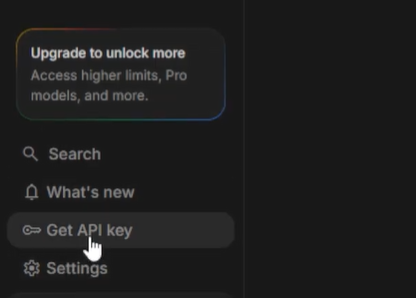
- Create a new API key by clicking on the Create API Key button on the top right
- Give your key a name and create or use an existing project
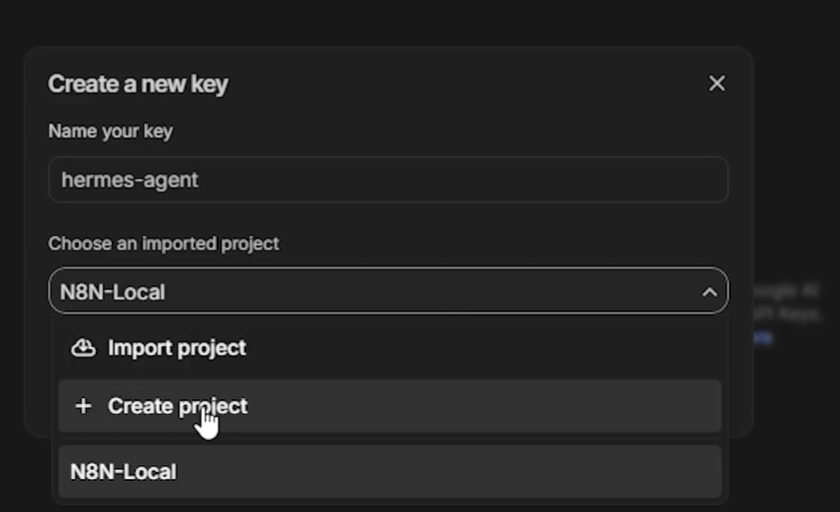
- Copy and save the key — you’ll need it during setup
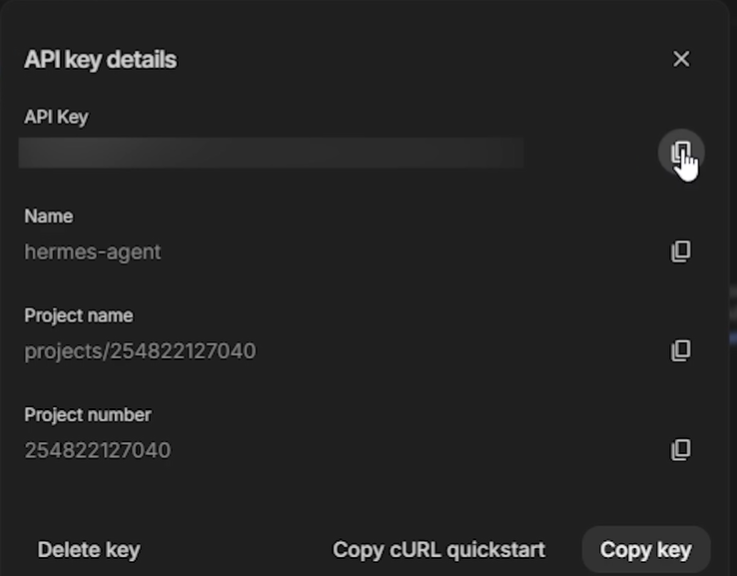
Step 4: Install Hermes Agent
- Visit GitHub
- Search for Hermes or open the Hermes repository by NousResearch.
- Copy the PowerShell command from the repo’s readme, or just copy it from below:
irm https://raw.githubusercontent.com/NousResearch/hermes-agent/main/scripts/install.ps1 | iex
- Open PowerShell as Administrator
- Paste the above command by right-clicking in the terminal
- Wait for the installation to complete
If you run into the below Python install error:
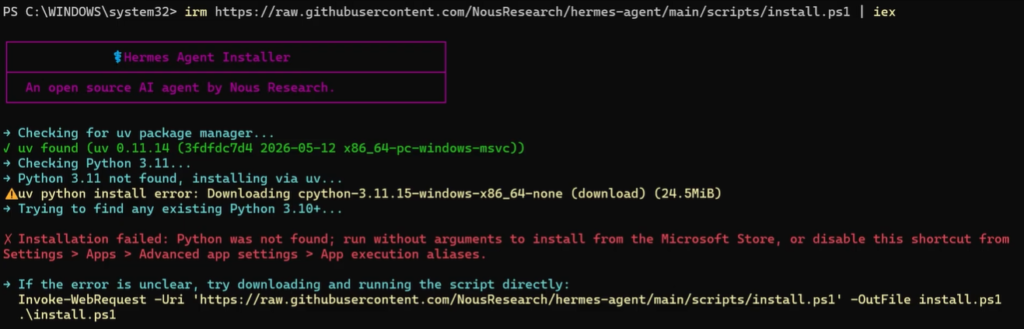
Then first, install Python using the following command in PowerShell:
winget install --id python.python.3.12
This will install Python on your computer. After Python is installed, run the Hermes installation command from step 3 again in PowerShell. This will install the Hermes agent on your computer.
After the installation completes, Hermes configuration setup will automatically begin, but if not, then u can start it by following the next step.
Step 5: Configure Hermes Agent
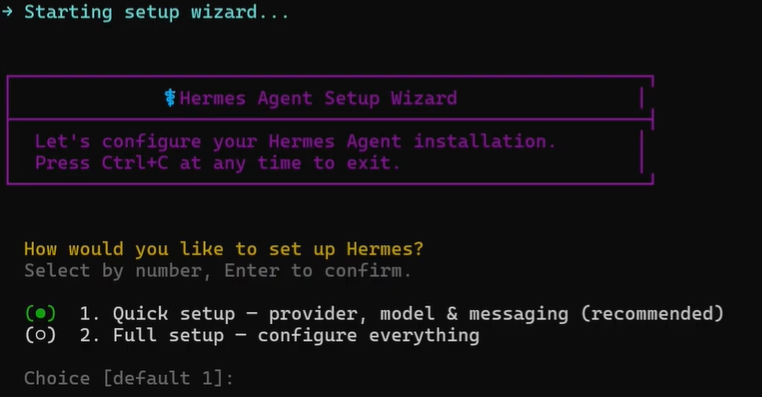
- Open PowerShell and run the below command:
hermes setup - Select Quick setup and press Enter
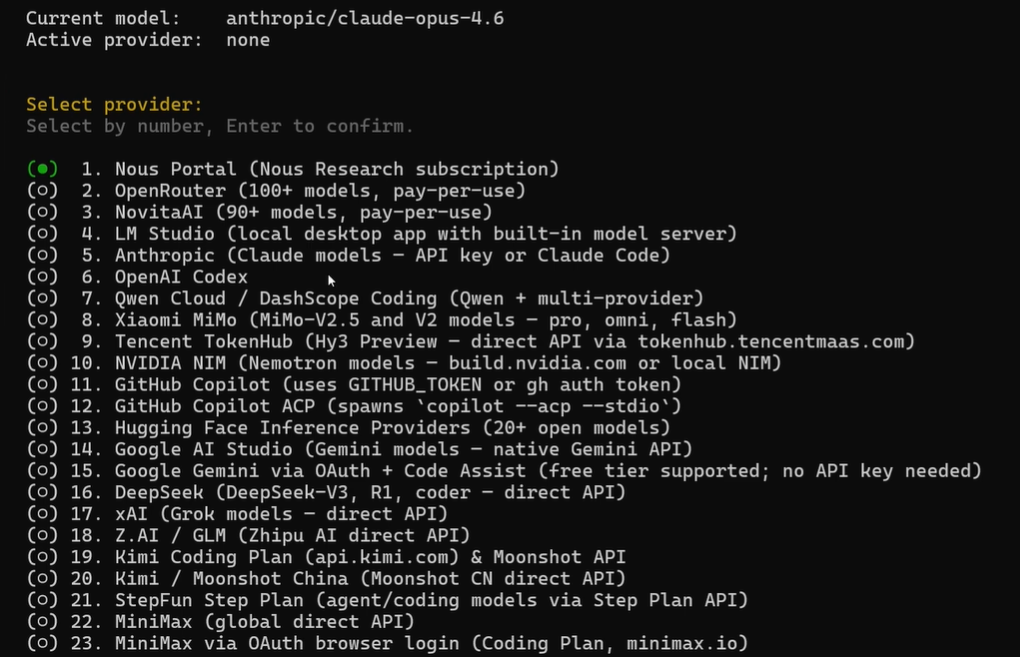
- Select a provider. In our case, we’ll use Google AI Studio as the provider (Number 14 on the list). Type 14 and press Enter.
- When prompted, enter your Google AI Studio API key. You can also paste your API key by right-clicking in the terminal.
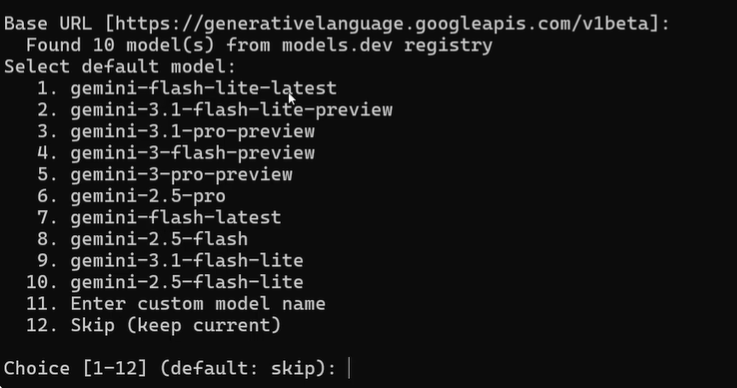
- Keep the base URL as the default in the next step by just pressing Enter.
- Choose your preferred model (We’ll use Gemini Flash Lite in this case)
Step 6: Start Using Hermes Agent
- Launch Hermes Agent by running the below command in a PowerShell terminal:
hermes - You’ll see the Hermes welcome message
- Start typing commands or questions:
“`Help me organize my project files
Create a blog post from my YouTube video
Set up a daily task to check my email
“`
Common Commands
| Command | What It Does |
|---|---|
hermes | Start an interactive session |
hermes setup | Run the configuration wizard |
hermes --version | Check installed version |
hermes help | Show available commands |
Troubleshooting
“Python is not recognized.”
- Make sure Python is added to PATH during installation
- Restart PowerShell after installing Python
“pip is not recognized.”
- Try
python -m pip install hermes-agentinstead - Or reinstall Python with the “Add to PATH” option
API key errors
- Make sure your Google AI Studio API key is valid
- Check that you have credits/quota remaining
- Regenerate the key if needed
Installation fails
- Run PowerShell as Administrator
- Try upgrading pip first:
python -m pip install --upgrade pip - Check your internet connection
Why Use Hermes Agent?
- Local execution — Runs on your machine, not in the cloud
- File access — Can read, write, and organize your files
- Task automation — Schedule recurring tasks with cron jobs
- Web access — Search and fetch information from the internet
- Git integration — Manage version control directly
- Extensible — Add custom skills and tools
Frequently Asked Questions
Q: Do I need WSL to run Hermes Agent?
A: No! Hermes Agent runs natively on Windows 11 through PowerShell. WSL is not required.
Q: Is Hermes Agent free?
A: The Hermes Agent software is free. You’ll need a Google AI Studio API key, which has a free tier with generous limits. You can also use an API key from any other LLM provider like OpenRouter.
Q: Can I use it without an internet connection?
A: No, Hermes Agent requires an internet connection to communicate with the AI model.
Q: What models are supported?
A: Hermes Agent works with various models, including Google’s Gemini Flash Lite, Gemini Pro, and others, depending on configuration.
Q: Is it safe to give an AI agent access to my files?
A: Hermes Agent runs locally with your user permissions. It can only access files that your user account can access. Always review what you’re asking it to do.
Conclusion
Installing Hermes Agent on Windows 11 is straightforward — just Python, Git, a Google API key, and a few commands. Once set up, you’ll have a powerful AI assistant running right in your terminal, ready to help you automate tasks, manage projects, and get more done.
Give it a try and see how an AI agent can transform your workflow.
Related Searches: Hermes Agent install, Hermes Agent Windows 11, install AI agent Windows, NousResearch Hermes, Google AI Studio API key, local AI assistant Windows, Hermes AI tutorial, AI automation Windows 11

2 thoughts on “How to Install Hermes Agent on Windows 11 Without WSL”
Comments are closed.