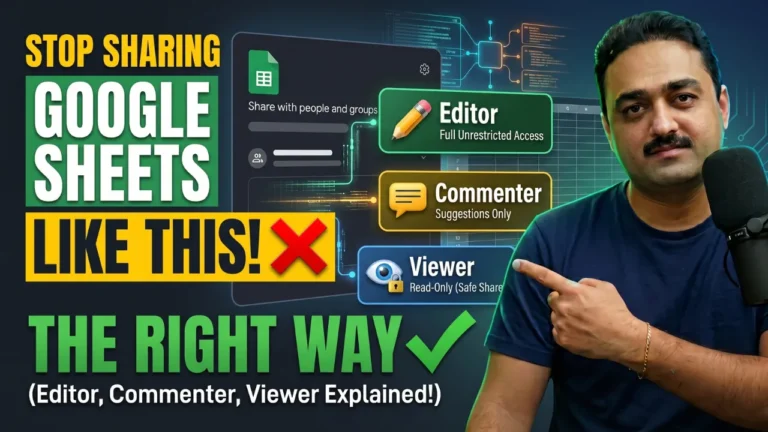
Google Sheets provides three primary sharing permission levels: Viewer, Commenter, and Editor. Viewers can only look at the sheet, Commenters can leave suggestions without editing cells, and Editors hold full access to modify content and structure. Users can grant access directly through email or by generating a link.
To secure spreadsheet data, General Access should remain Restricted to invited individuals. Additional security settings allow sheet owners to block Editors from changing permissions or re-sharing, as well as prevent Viewers and Commenters from downloading, copying, or printing the document.
Sharing a Google Sheet with the wrong permission level is one of the quickest ways to lose control of your data — one stray edit, one accidental copy, and your numbers are gone or leaked. The good news is that Google Sheets gives you three clear permission levels — Viewer, Commenter, and Editor — so you can share work with exactly as much access as the other person needs, and not a drop more.
By the end of this guide, you will be able to share a Google Sheet the right way: by email, by link, with restricted general access, and with downloads, copies, and permission changes locked down. It takes about two minutes once you know where the switches are.
TL;DR: Open Share (top right). Add people by email or copy the link. Pick a role: Viewer (look only), Commenter (look + comment), Editor (full edit, copy, restructure). Keep General Access → Restricted so only invited people can open it. Then, under Settings, uncheck “Allow editors to change permissions and share” and uncheck the “Editors” and “Commenters and viewers” checkboxes under “People who can download, copy, and print” to lock your data down.
What You’ll Learn
- The exact difference between Viewer, Commenter, and Editor roles
- How to share a sheet with specific people by email
- How to share a sheet with anyone via link, safely
- How to stop editors from changing sharing permissions
- How to block download, copy, and print for your team
- When to use each permission so you never over-share
Tools & Requirements
| Tool | Purpose | Cost |
|---|---|---|
| Google account | Access Google Sheets | Free |
| Google Sheets | The spreadsheet app you’re sharing | Free |
| Email address (theirs) | Sharing with specific people | Free |
| WhatsApp / email / any chat | Sending the sheet link | Free |
The Simple Answer: Which Permission Should You Pick?
Google Sheets gives every person you share with exactly one of three roles:
- Viewer — can open the sheet and look at it. They cannot edit, comment, copy, or restructure anything.
- Commenter — can open the sheet, look at it, and leave comments or suggestions. They cannot edit cells or structure.
- Editor — has full access: they can edit cells, change structure, copy, download, print, and (unless you turn it off) re-share the sheet.
The rule of thumb: give the least access that still lets the person work. Students and clients usually need Viewer. Team review sessions need Commenter. Co-workers actively building the workbook together need Editor — but lock down their ability to change permissions and download.
If working with spreadsheet data security matters to you, you’ll want the same discipline I covered in the Excel Data Security guide for cells, sheets, and workbook structure — the principles transfer directly to Google Sheets.
Step-by-Step Walkthrough
Step 1: Open the Share Dialog
With your Google Sheet open, click the Share button at the top right of the window. The sharing dialog opens with everything you need in one place.
Step 2: Share with Specific People (by email)
If you want to give access to a named person only:
- In the “Add people, groups, spaces, and calendar events” field, type their email address exactly. Google autocompletes known contacts.
- Repeat for every person who needs access.
- Next to each address, pick the role: Viewer, Commenter, or Editor.
Step 3: Choose Whether to Notify Them
Below the person list is a Notify people checkbox.
- Checked (default) — Google emails everyone you shared with, telling them the sheet is now available.
- Unchecked — no email goes out (useful if you’re sharing a link in person or on a call).
- You can also add a custom message in the box above Send — great for giving context like “Please review the Q3 numbers and add comments.”
When you’re ready, click Send. Each person now has access directly through that notification email.
Step 4: Keep “General Access” Restricted
Back in the share dialog, look at the General access row (bottom of the window). Leave it on Restricted.
- Restricted — only the people you explicitly added can open the sheet. Anyone with the link but not on the list sees a “You need access” request page.
- If you switch it to anything less restrictive, the sheet becomes openable by anyone holding the link — which is how spreadsheets get leaked.
The only time you change this is if you deliberately want link sharing (next step).
Step 5: Turn On “Anyone with the Link” (when you want link sharing)
If you want to share the sheet with anyone who has the link — for a public resource, a submission form, or a one-off external review — do this:
- In General access, open the dropdown and select Anyone with the link.
- On the right, pick the role you want the world to have: Viewer, Commenter, or Editor.
- Click Copy link.
- Send that link via WhatsApp, email, or anywhere else.
Caution: with “Anyone with the link”, every person who gets the link inherits whatever role you set. For links shared publicly, Viewer is almost always the safe choice.
Step 6: Lock Down Permissions (the part people miss)
Click the Settings gear at the top right of the share window. Two important switches live here for defining the Access:
- Allow editors to change permissions and share — uncheck this. Now even your Editors can edit the sheet but cannot invite other people or change roles.
- People who can download, copy, and print — uncheck this. Now viewers and commenters cannot download, print, or copy your sheet. They can only look (and, for commenters, comment).
This is the step that turns “shared” into “shared securely.”
Step 7: Done
Click Done. Your sheet is now shared with exactly the right people, with exactly the right access, and protected from downloads, copies, and permission changes.
Viewer vs Commenter vs Editor: Comparison Table
| Capability | Viewer | Commenter | Editor |
|---|---|---|---|
| View the sheet | Yes | Yes | Yes |
| Leave comments / suggestions | No | Yes | Yes |
| Edit cells | No | No | Yes |
| Change structure | No | No | Yes |
| Copy / download / print (default) | Yes* | Yes* | Yes |
| Copy / download / print (when you uncheck the setting) | No | No | Yes |
| Change sharing permissions (when you uncheck the setting) | No | No | No |
* Only when the “Viewers and commenters can see the download, print, and copy actions” setting remains checked (the default). Uncheck it to remove this.
Who Should Use Which Permission
| Person / Scenario | Recommended Role |
|---|---|
| Client reviewing your deliverables | Viewer |
| Public resource, download / product page | Viewer (with download unticked) |
| Team collecting feedback on a draft | Commenter |
| Class project everyone pitches in on | Commenter or Editor (permissions unchecked) |
| Co-workers building a shared model together | Editor (permissions unchecked) |
| Accountant / partner who fully owns data entry | Editor |
Tips for Best Results
- Default to Restricted. Leaving General Access on “Anyone with the link” is the #1 cause of accidentally public spreadsheets. Change it only when you mean it.
- Uncheck “Allow editors to change permissions and share” on anything shared with more than one person — it stops one editor silently inviting the whole company.
- Uncheck the options under People who can download, copy, and print for sensitive sheets. Financials, payroll, client data — viewers should not be able to take a copy home.
- Use a custom message when you Send. Context reduces “why did you share this with me?” confusion and means fewer urgent calls.
- Audit your shares regularly. Open Share and scroll the list; remove anyone who no longer needs access. If you have lots of sheets, check the sharing page in Drive.
Frequently Asked Questions
Q: What is the difference between a viewer, commenter, and editor in Google Sheets?
A: A viewer can only open and read the sheet. A commenter can also add comments and suggestions but cannot edit cells. An editor has full access — edit cells, restructure, copy, download, and print. Choose the least powerful role that lets the other person do their job.
Q: How do I make a Google Sheet view-only?
A: Open the sheet, click Share (top right), add the person or set Anyone with the link, and select the Viewer role. Then open Settings and uncheck “People who can download, copy, and print” actions so they can’t take a copy either.
Q: How do I stop people from copying or downloading my Google Sheet?
A: In the Share dialog, click the Settings gear and uncheck “People who can download, copy, and print” actions. Editors can still copy/download by role; restrict that by making them a viewer or commenter instead.
Q: How do I stop editors from changing permissions in Google Sheets?
A: Open the Share dialog, click Settings, and uncheck “Allow editors to change permissions and share.” Editors can now edit the content but cannot invite new people or alter sharing roles.
Q: Can I share a Google Sheet with anyone with the link without a Google account?
A: Yes. Set General access → Anyone with the link and pick the role. Anyone opening that link can access the sheet based on the role you chose — no Google account or sign-in is required for the link to work.
Q: Why does my shared Google Sheet say “You need access”?
A: The sheet’s General access is set to Restricted, and you’re not on the allowed list. Either the owner needs to add your email address, or the owner must switch General access to “Anyone with the link.”
Q: How do I share a Google Sheet with someone without sending them an email?
A: Set General access to Anyone with the link, pick the role, and click Copy link. Send that link yourself through WhatsApp, messaging apps, or wherever you usually communicate. No notification email is involved.
Q: Can someone edit my Google Sheet if I give them the link?
A: Only if you set the Anyone with the link role to Editor. If the role is Viewer or Commenter, they can only view or comment. If you used “Restricted,” they get “You need access” instead.
Key Takeaways
- Google Sheets has three permission levels — Viewer, Commenter, Editor — and you should always use the least permissive one that works.
- Give named people access in the share dialog; keep General Access → Restricted unless you really want link sharing.
- For link sharing, choose the role for “Anyone with the link” — Viewer is the safe default.
- Open Settings and uncheck “Allow editors to change permissions and share” on anything shared with more than one person.
- Uncheck “People who can download, copy, and print“ actions whenever the content is sensitive.
- Audit your shares regularly in Google Drive and remove people who no longer need access.
Need to lock down spreadsheet data at the cell level rather than the account level? The process is the same discipline as protecting Excel files — see my Excel Data Security guide.