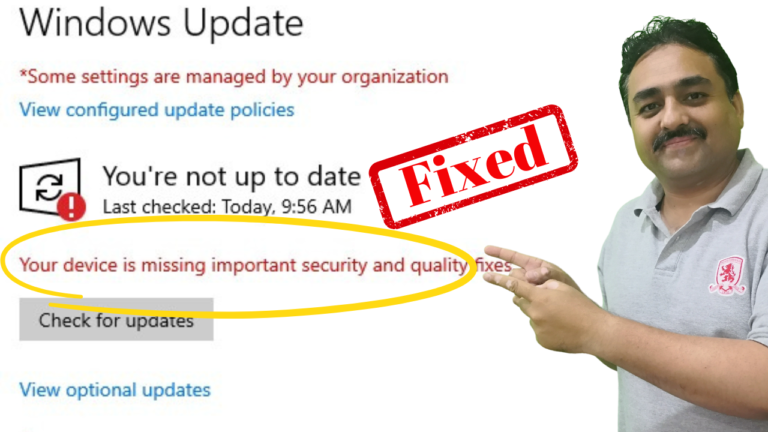
If you have seen the error message “Your device is missing important security and quality fixes” on your Windows 10 computer, you are not alone. This common error prevents Windows Update from installing critical security patches and quality updates.
In this guide, you will learn several methods to fix this error and get your Windows updates working again.
Why Does This Error Occur?
- Corrupted Windows Update components
- Outdated or incompatible drivers
- Insufficient disk space
- Corrupted system files
- Third-party software conflicts
Method 1: Use Windows 10 Update Assistant
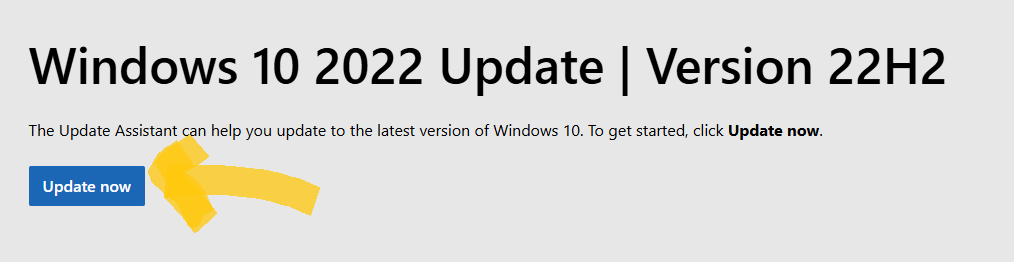
- Download Windows 10 Update Assistant
- Click the Update now button to download
- Save the tool on your computer
- Run the downloaded file.
Once you run the Windows update assistant, it will automatically download all the required updates for your Windows computer. Once completed, it will ask you to restart your computer. Restart your computer and then check Windows update from settings. You’ll see a notification that you’re up to date.
Method 2: Run Windows Update Troubleshooter
- Go to Settings > Update & Security > Troubleshoot
- Click Additional troubleshooters
- Select Windows Update > Run the troubleshooter
- Follow the on-screen instructions
- Restart your computer
Method 3: Reset Windows Update Components
Step 1: Open Command Prompt as Administrator
- Press Win + X and select Command Prompt (Admin)
- Or search for cmd and run as administrator
Step 2: Stop Windows Update Services
net stop wuauserv
net stop cryptSvc
net stop bits
net stop msiserver
Step 3: Rename Software Distribution Folders
ren C:\Windows\SoftwareDistribution SoftwareDistribution.old
ren C:\Windows\System32\catroot2 catroot2.old
Step 4: Restart Windows Update Services
net start wuauserv
net start cryptSvc
net start bits
net start msiserver
Step 5: Check for Updates
- Go to Settings > Update & Security > Windows Update
- Click Check for updates
Method 4: Run System File Checker
- Open Command Prompt as Administrator
- Run:
sfc /scannow - Wait for the scan to complete
- If errors are found, run:
DISM /Online /Cleanup-Image /RestoreHealth - Restart your computer
Method 5: Free Up Disk Space
Windows Update needs sufficient disk space to download and install updates.
- Open Settings > System > Storage
- Click Free up now under Storage Sense
- Delete temporary files and old Windows installations
- Aim for at least 10GB of free space
Method 6: Manually Install Updates
If automatic updates still fail:
- Go to Settings > Update & Security > Windows Update
- Click View update history > Uninstall updates
- Note any failed updates
- Visit the Microsoft Update Catalog (catalog.update.microsoft.com)
- Search for the failed update KB number
- Download and install manually
Tips to Prevent Future Update Errors
- Keep at least 10GB of free disk space
- Run Windows Update regularly — do not let updates pile up
- Keep drivers updated — especially network and chipset drivers
- Disable third-party antivirus temporarily during updates
- Use a stable internet connection when downloading updates
Conclusion
The “Your device is missing important security and quality fixes” error can be resolved using these methods. Start with the Windows Update troubleshooter, then progress to resetting update components if needed. Keeping your system updated is crucial for security and performance.