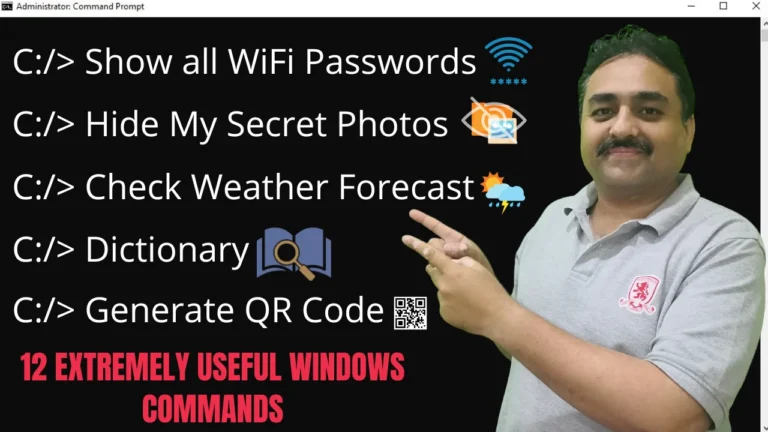
Most Windows users spend their entire day navigating through multi-layered graphical menus, right-clicking context menus, and downloading third-party utilities to perform basic system tasks. Whether you need to recover a forgotten Wi-Fi security key, protect sensitive documents from prying eyes, or inspect network connections, there is almost always a simpler, faster way built directly into Windows.
The native Windows Command Prompt (cmd.exe) and PowerShell are packed with built-in utilities that require zero software installations, zero subscription fees, and zero system overhead.
| # | Command Syntax | What It Does | Privilege Level |
|---|---|---|---|
| 1 | copy /b photo.jpg + secret.zip output.jpg |
Hides sensitive ZIP/RAR files inside an ordinary image (Steganography). | Standard |
| 2 | cipher /e "Folder_Path" |
Encrypts files and folders using Windows native EFS certificate. | Standard |
| 3 | attrib +s +h +r "Folder_Name" |
Super-hides a folder so it remains invisible even when “Hidden files” is on. | Standard |
| 4 | systeminfo |
Generates a complete audit of OS build, BIOS, RAM, and hardware specs. | Standard |
| 5 | subst X: "C:\Deep\Folder\Path" |
Mounts any long directory path as a dedicated virtual drive letter. | Standard |
| 6 | curl wttr.in/Islamabad |
Displays an instant graphical weather forecast in the terminal. | Standard |
| 7 | curl -IL <shortened_url> |
Traces HTTP redirect chains to safely inspect suspicious or phishing links. | Standard |
| 8 | curl -Is <url> |
Checks if a website is online and inspects HTTP status codes (200, 404, 500). | Standard |
| 9 | curl icanhazip.com |
Instantly reveals your public IPv4/IPv6 address without visiting ad-heavy sites. | Standard |
| 10 | curl dict://dict.org/d:word |
Looks up word definitions and grammar entries directly in console. | Standard |
| 11 | curl qrenco.de/<text> |
Generates a scannable ASCII QR code directly inside Command Prompt. | Standard |
| 12 | netsh wlan show profile name="SSID" key=clear |
Reveals the plain-text password of any saved Wi-Fi network. | Administrator |
Command 1: Hide Secret Files Inside an Ordinary Image (Steganography)
⏱️ Video Demo: Jump to 01:05 in video
Steganography is the art of concealing confidential data inside an ordinary file. In Windows, you can bind a compressed ZIP or RAR archive directly behind an image file using binary concatenation.
When anyone double-clicks the resulting file, Windows Photo Viewer opens it as a normal photograph. However, when opened with an archive tool like 7-Zip or WinRAR, your hidden confidential files appear intact.
- Place your cover image (e.g.,
cover.jpg) and your secret archive (e.g.,documents.zip) in the same folder. - Open Command Prompt in that directory (click the File Explorer address bar, type
cmd, and press Enter). - Run the following binary copy command:
copy /b cover.jpg + documents.zip secret_photo.jpgHow to Access the Secret Data:
- Option A: Right-click
secret_photo.jpg→ Open with → Select 7-Zip or WinRAR. - Option B: Rename the file extension from
.jpgto.zipand extract the files normally.
Command 2: Encrypt Files & Folders Instantly with Windows EFS (cipher)
⏱️ Video Demo: Jump to 04:29 in video
If you share a computer or want to ensure that files copied off your machine cannot be read by unauthorized users, Windows includes a native Encrypting File System (EFS) powered by the cipher utility.
cipher /e /s:"C:\Users\YourUsername\Documents\Confidential"/especifies that files should be encrypted./stells Windows to perform the operation recursively across all child directories and subfiles.
Once encrypted, a small padlock icon appears on the files in File Explorer. Files are decrypted on-the-fly when you are logged into your Windows user account, but will be completely inaccessible if copied to another machine without your certificate key.
To reverse the process and remove encryption:
cipher /d /s:"C:\Users\YourUsername\Documents\Confidential"Command 3: Super-Hide Folders from Everyone (attrib)
⏱️ Video Demo: Jump to 05:49 in video
In File Explorer, checking the standard “Hidden” box in folder properties is practically useless: anyone who toggles View → Hidden items will immediately see your grayed-out folder.
To truly hide a directory, you can elevate it to a Protected System File using the attrib command. When this attribute is set, Windows will hide the folder even if “Show hidden files” is enabled.
attrib +s +h +r "C:\Path\To\Your\Private_Folder"+sassigns the System file attribute.+hassigns the Hidden attribute.+rassigns the Read-only attribute.
Warning: Because this command completely removes the folder from standard File Explorer browsing, make sure you remember the exact folder name and directory path!
To restore the folder back to normal visibility:
attrib -s -h -r "C:\Path\To\Your\Private_Folder"Command 4: Generate a Full Hardware & OS Audit Report (systeminfo)
⏱️ Video Demo: Jump to 08:16 in video
When troubleshooting performance issues, upgrading RAM, or checking driver compatibility, third-party audit software is unnecessary. The built-in systeminfo command queries the Windows Management Instrumentation (WMI) database to display an exhaustive overview of your computer.
systeminfoWithin seconds, you will receive:
- OS Build & Install Date: Exact Windows version and original operating system installation timestamp.
- System Uptime: Exactly how long your PC has been running since the last reboot.
- Motherboard & BIOS Version: Manufacturer, model number, and UEFI/BIOS release date.
- Physical Memory (RAM): Total installed physical memory, available memory, and virtual memory allocation.
- Hotfixes: A comprehensive list of every Microsoft Security Update (KB patch) installed on the machine.
To save this report to a text file on your desktop:
systeminfo > C:\Users\Public\Desktop\system_audit.txtCommand 5: Mount Any Deep Folder as a Virtual Drive Letter (subst)
⏱️ Video Demo: Jump to 09:28 in video
If you work with deeply nested folder paths (for instance: C:\Users\umair\Projects\Clients\2026\AlphaCorp\Assets\Source), navigating through half a dozen folders every day wastes valuable time.
The subst command allows you to assign a dedicated virtual drive letter (such as X: or Z:) directly to that directory. The folder will appear as an independent local hard drive in “This PC”.
subst X: "C:\Users\umair\Projects\Clients\2026\AlphaCorp\Assets\Source"Now, open File Explorer: you will see a brand new X: drive that opens directly into your project files with a single click.
When your project is finished, remove the virtual drive mapping with the /d (delete) switch:
subst X: /dCommand 6: Check Live Weather Forecast in Your Terminal (curl wttr.in)
⏱️ Video Demo: Jump to 11:28 in video
Did you know Windows includes the powerful curl utility natively? One of the cleanest demonstrations of curl is querying wttr.in, a terminal-oriented weather service that renders ASCII forecasts.
curl wttr.in/IslamabadTo specify any other city:
curl wttr.in/LondonIf you just want a quick temperature snapshot without the full table, append ?format=3:
curl wttr.in/London?format=3Command 7: Safely Unshorten Suspicious URLs Before Clicking (curl -IL)
⏱️ Video Demo: Jump to 12:16 in video
Shortened URLs (bit.ly, tinyurl.com, t.co) are among the most common vectors used in phishing scams and malware campaigns because they conceal the true destination domain.
Instead of pasting a suspicious shortened link into your web browser and risking an automated drive-by download, you can inspect the HTTP redirect headers safely from the command line:
curl -IL https://bit.ly/sample-short-link-Itells curl to fetch the HTTP headers only (no body content or JavaScript execution).-Linstructs curl to follow redirects from hop to hop.
In the console output, look for the Location: header in each HTTP 301/302 response to verify the final destination before visiting it in a browser.
Command 8: Check Website Status & Server Response Codes (curl -Is)
⏱️ Video Demo: Jump to 14:17 in video
If a website is failing to load on your computer, is the site actually down, or is your local DNS cache acting up? You can test any server’s live HTTP response code in half a second using curl:
curl -Is https://umairalam.comKey HTTP response codes to look for:
HTTP/2 200 OK: The server is online, healthy, and delivering pages properly.HTTP/2 301 Moved Permanently: The URL is redirecting to a new address.HTTP/2 403 Forbidden/404 Not Found: The resource is blocked or missing.HTTP/2 500 / 502 / 503: The web server or backend is experiencing downtime.
Command 9: Check Your Public IP Address Instantly
⏱️ Video Demo: Jump to 15:20 in video
Finding your external public IP address usually requires opening a web browser and wading through ad-infested “What Is My IP” websites. With curl, you can query lightweight plain-text IP reflector endpoints that return your external IP address in milliseconds:
curl icanhazip.comReliable alternative endpoints:
curl ipinfo.io/ip
curl ifconfig.me
curl checkip.amazonaws.com
Command 10: Terminal Dictionary & Word Definition Lookup
⏱️ Video Demo: Jump to 16:08 in video
Need a quick definition, spelling verification, or synonym while coding or drafting documentation? You can query the DICT network protocol directly from Command Prompt:
curl dict://dict.org/d:automationReplace automation with any English word. The server returns full lexical definitions, parts of speech, pronunciation guides, and etymological origins formatted neatly in your terminal window.
Command 11: Generate ASCII QR Codes Directly in Console (curl qrenco.de)
⏱️ Video Demo: Jump to 16:49 in video
Need to quickly transfer a URL, Wi-Fi password, or snippet of text from your PC to your smartphone? You can generate an instant, high-contrast QR code right inside your terminal:
curl qrenco.de/https://umairalam.comYour smartphone camera can scan the ASCII block pattern directly off your computer monitor. To save or share the QR code, press Win + Shift + S to snip it as an image.
Command 12: Reveal Saved Wi-Fi Passwords in Plain Text (netsh)
⏱️ Video Demo: Jump to 18:32 in video
Have you ever needed to connect a guest device or new laptop to your Wi-Fi network, but forgotten the Wi-Fi security key? Windows stores every Wi-Fi network password you have ever connected to in its local wireless profiles.
Step 1: List All Saved Wi-Fi Profiles
netsh wlan show profilesStep 2: Reveal the Plain-Text Security Key
netsh wlan show profile name="YourWiFiNetworkName" key=clearLook under the Security settings section: next to Key Content, Windows will display the exact Wi-Fi password in plain text.
Related Guides & Free Productivity Tools
- Optimize Windows Performance: Disable bloated background processes in my master guide on How to Free Up RAM on Windows 11/10: Disable Hidden Services.
- Multi-User Remote Desktop: Learn How to Enable Multiple RDP Sessions on Windows 10.
- Fix Windows Update Glitches: Step-by-step troubleshooting in How to Fix Windows 10 Update Errors.
- Free Online Browser Utilities: Check out our fast, private PDF Tools and Image Tools for client-side processing without uploading files to remote servers.
Frequently Asked Questions (FAQ)
Do these commands work on both Windows 10 and Windows 11?
Yes. All 12 commands demonstrated in this tutorial are 100% compatible with Windows 10, Windows 11, and Windows Server editions.
Is curl installed by default on Windows?
Yes. Microsoft has bundled the official curl.exe executable inside C:\Windows\System32 by default since Windows 10 Version 1803 (April 2018 Update).
Will copy /b damage my original cover photo?
No. The command creates a brand new output file (e.g., secret_photo.jpg), leaving your original source image and original ZIP archive completely untouched.
Why does my Wi-Fi password show asterisks instead of plain text?
You must include the parameter key=clear at the end of the netsh wlan show profile command. Without key=clear, Windows omits the password for security.
Summary & Video Chapters
Command line proficiency is the fastest shortcut to mastering Windows. By combining native utilities like attrib, systeminfo, subst, and netsh with modern built-ins like curl, you can solve complex system, privacy, and networking challenges in seconds.
- 00:00 — Introduction
- 01:05 — Command 1: Hide Secret Files in Images
- 04:29 — Command 2: Data Encryption with EFS
- 05:49 — Command 3: Super-Hide Folders with Attrib
- 08:16 — Command 4: Full System Information Audit
- 09:28 — Command 5: Mount Any Folder as a Virtual Drive
- 11:28 — Command 6: Check Live Terminal Weather
- 12:16 — Command 7: Unshorten Suspicious Links Safely
- 14:17 — Command 8: Check Website Uptime & Status Codes
- 15:20 — Command 9: Check Your Public IP Address
- 16:08 — Command 10: Terminal Dictionary & Word Lookup
- 16:49 — Command 11: Generate ASCII QR Codes
- 18:32 — Command 12: Reveal Saved Wi-Fi Passwords
- 19:58 — Conclusion & Outro
- Watch the Complete Video Tutorial: 12 Extremely Useful Windows Commands
- Subscribe for More Tutorials: Umair Alam on YouTube